
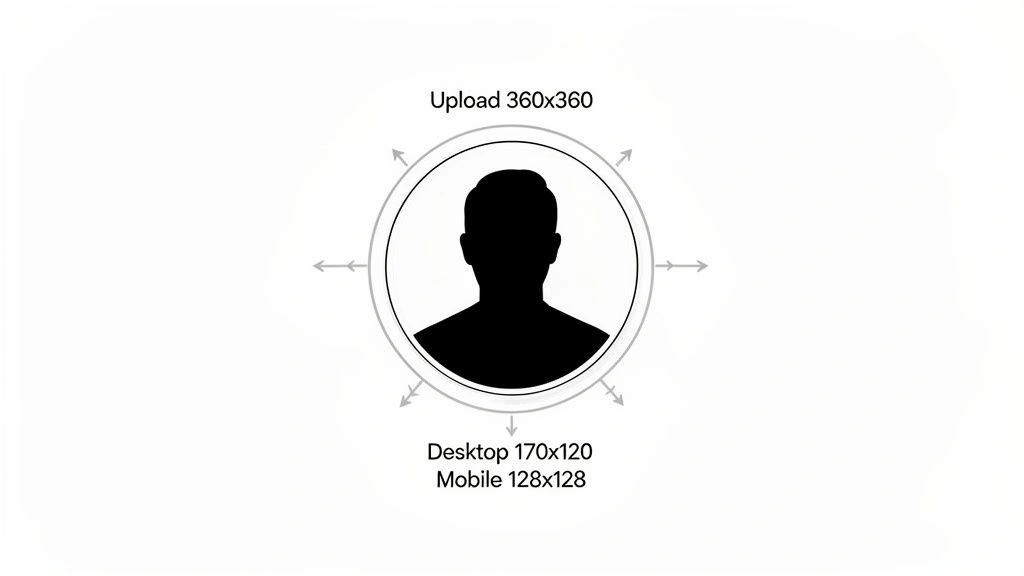
A profile picture can look perfectly sharp in your gallery and strangely blurry after you upload it. Sometimes the face gets cropped, a logo loses its edges, or an illustration that looked detailed at full size becomes difficult to recognize as a tiny avatar. In most cases, the image itself is not the problem. Its dimensions, resolution, or aspect ratio simply do not match the way the platform displays profile pictures.
The terminology can make things more confusing. Digital images are measured in pixels, physical displays are measured in inches, and image shapes are usually described through aspect ratios. Although these measurements are related, they are not interchangeable.
Understanding how they work makes it much easier to choose, crop, resize, and export a profile picture without sacrificing the details that made you choose the image in the first place.
What Do Profile Picture Dimensions Actually Mean?
Digital image dimensions describe the number of pixels running across an image horizontally and vertically.
An image measuring 1000 × 1000 pixels, for example, contains 1,000 pixels across its width and 1,000 pixels across its height. Because both dimensions are equal, the image is square.
This is especially useful for profile pictures. Many social platforms use square source images before displaying them inside a square or circular avatar frame.
Dimensions should not be confused with file size. Two images can have identical pixel dimensions while having very different file sizes because of their format, compression level, color information, and visual complexity.
Pixels vs Inches: The Difference That Causes Confusion
Pixels and inches both describe size, but they measure completely different things.
A pixel is a digital unit. Think of an image as a grid made from thousands of tiny colored squares. Each of those squares is a pixel, and together they create the photograph, illustration, character, or graphic you see on your screen.
An inch is a physical unit of length. It can describe the size of a monitor, photograph, picture frame, tablet, phone, or another real-world object.
This means a 1000-pixel-wide image does not automatically have one fixed width in inches. Its physical appearance depends on the screen or medium displaying it.
That distinction becomes important whenever digital images and physical displays are discussed together.
Why Resolution Matters for Profile Pictures
Resolution affects how much visual information is available in an image.
A high-resolution source gives you greater flexibility when cropping and resizing. If the original image is already very small, enlarging it may make edges look soft, facial features less defined, and text difficult to read.
This happens because enlarging an image cannot magically recover detail that was absent from the original file.
For profile pictures, it is usually better to begin with a larger, clean source and reduce its dimensions when necessary rather than starting with a tiny image and trying to enlarge it later.
Resolution becomes particularly noticeable with anime artwork, gaming avatars, logos, detailed illustrations, and portraits where small facial features need to remain recognizable.
Why Aspect Ratio Matters Just as Much
Pixel count tells only part of the story. The shape of an image matters too.
Aspect ratio describes the relationship between width and height. A 1:1 ratio means both sides are equal, producing a square image.
Other familiar ratios include:
- 4:5 for portrait-oriented images
- 3:2 for many photographs
- 16:9 for widescreen content
- 9:16 for vertical videos and stories
For profile pictures, 1:1 is generally the easiest starting point because square images adapt naturally to common avatar layouts.
If you upload a wide landscape photograph as a profile picture, the platform may need to remove a substantial portion of the sides. A tall portrait can experience the same problem at the top and bottom.
Choosing the correct ratio before uploading gives you much more control over what remains visible.
Square Uploads Can Still Become Circular
One detail that catches people off guard is circular cropping.
You may upload a perfectly composed square image, yet the platform displays it inside a circle. The four corners of your original picture are effectively removed.
That is why important details should not sit too close to the edges.
Faces, character eyes, logos, symbols, and other focal points are safer near the center. Decorative backgrounds can extend toward the corners because losing part of them usually does not change the identity of the image.
Before uploading, imagine a circle inside your square image. If everything important fits comfortably within that circle, your PFP is much less likely to suffer from awkward cropping.
Why the Same Image Looks Different on Different Screens
A digital image does not have one universal physical display size.
Imagine opening the same 1200 × 1200 pixel avatar on a smartphone, tablet, laptop, and desktop monitor. The file itself has not changed, yet its physical appearance can be noticeably different on each device.
Screen dimensions and pixel density help explain why.
A compact display can pack many pixels into a relatively small physical area, while another display may spread pixels across a larger surface. As a result, pixel dimensions alone cannot tell you exactly how many physical inches an image will occupy on every screen.
This is one of the key differences between digital dimensions and physical dimensions.
How Screen Measurements Relate to Image Size
Screen size introduces another measurement that is easy to misunderstand.
When a monitor or television is described as 24, 32, or 40 inches, that number usually refers to the diagonal length of the display, not its horizontal width.
A 40-inch screen, therefore, is not necessarily 40 inches from its left edge to its right edge. Its actual width and height depend partly on its aspect ratio.
This is where real-world size references can be useful. Measurement resources such as MeasureZen use familiar objects and practical comparisons to make dimensions easier to visualize when a number alone does not provide much perspective.
Understanding what is actually being measured—width, height, diagonal length, or pixel dimensions—prevents misleading comparisons between digital images and the screens displaying them.
Physical Size and Digital Size Should Be Treated Separately
A useful way to avoid confusion is to separate the two concepts.
Digital size concerns pixels, resolution, and aspect ratio.
Physical size concerns units such as inches, centimeters, feet, and meters.
The two can interact, particularly when an image is displayed on a physical screen or printed, but one does not automatically determine the other.
For example, knowing that an image is 1500 pixels wide does not tell you how many inches wide it will appear without additional information about the display or print settings.
Likewise, knowing that a monitor has a certain diagonal measurement does not tell you the exact pixel dimensions of the images displayed on it.
Why Profile Pictures Become Blurry After Uploading
Uploading a high-quality image does not always guarantee that the platform will display the untouched original.
Social platforms frequently process uploaded files. This may include resizing, recompression, format conversion, or generating several smaller versions for different areas of an app or website.
Compression can remove subtle detail, particularly from already-small images.
Starting with a clean source gives the platform more visual information to work with. Heavy compression performed before uploading can sometimes make the final result worse because the image may effectively be compressed twice.
If possible, export your profile picture at good quality and let the platform perform its own required optimization.
Keep the Main Subject Away From the Edges
Composition has a major effect on how well an image survives resizing.
A portrait where the person’s face nearly touches the edge may look dramatic at full size but become awkward once converted into a small circular avatar. The same applies to anime characters, gaming artwork, mascots, and logos.
Leave some negative space around the main subject.
You do not need a huge empty border. Just enough breathing room to accommodate slight cropping can make a significant difference.
This also makes one image easier to reuse across multiple platforms with different display treatments.
Be Careful With Text Inside a PFP
Text that looks clear while editing an image can become unreadable once the picture is reduced to avatar size.
This is particularly common with logos, gaming clan images, business profile pictures, and custom Discord avatars.
If text is essential, keep it short and relatively large. Strong contrast between the letters and background also helps.
For many personal profile pictures, removing tiny text entirely creates a cleaner result. A recognizable face, symbol, character, or simple visual usually survives small display sizes better than several words squeezed into the frame.
Should You Upload the Largest Image Possible?
Larger is generally better than too small, but there is a practical limit.
A high-resolution source provides room for cropping and downscaling without quickly losing detail. However, an unnecessarily enormous image may create a larger file without providing a visible improvement once displayed as a tiny avatar.
The better approach is to maintain a high-quality master copy and export an appropriately sized version for upload.
Most importantly, avoid repeatedly resizing and recompressing the same file. Keep the original available so you can create fresh versions whenever needed.
JPEG, PNG, or Another Format?
Image format can influence both quality and file size.
JPEG works particularly well for photographs and complex images containing many colors or gradients. Its compression keeps files relatively small, although aggressive compression can introduce visible artifacts.
PNG is commonly useful for logos, illustrations, graphics, and images requiring transparency. It can preserve sharp edges particularly well.
The best format depends on the image itself rather than one universal rule.
For a photographic portrait, JPEG may be perfectly suitable. For a clean illustrated avatar with transparent areas, PNG may be the better option.
A Practical Profile Picture Workflow
Preparing an avatar does not need to become a technical project.
Start with the highest-quality version of the image available. Create a square crop while keeping the main subject close to the center.
Next, preview the image as a circle. Check that the face, logo, character, or other important elements remain safely inside the visible area.
Then reduce the preview to roughly the size at which people will actually see it. Fine details that look impressive on a large monitor may disappear completely at avatar size.
Finally, export a clean copy without excessive compression and keep the original file separately.
This simple workflow solves many common profile picture quality problems before they happen.
Common Sizing Mistakes to Avoid
Several problems appear repeatedly when preparing profile pictures.
Using a low-resolution source is one of the most common. Another is stretching an image horizontally or vertically instead of resizing it proportionally.
Placing important details in the corners can also cause problems once a square image becomes circular.
Other mistakes include using tiny text, applying excessive compression, repeatedly saving the same JPEG, and evaluating an avatar only at full-screen size.
The final test should always be simple: does the image still look clear and recognizable when it becomes small?
If the answer is yes, the profile picture is probably doing its job.
Quick Guide to the Most Important Measurements
The terminology becomes much easier when each measurement has one clear purpose:
| Measurement | What It Describes | Example |
|---|---|---|
| Pixels | Digital width and height | 1000 × 1000 px |
| Aspect Ratio | Relationship between width and height | 1:1 |
| Inches | Physical length | 24-inch monitor |
| Centimeters | Physical length | 30 cm |
| Screen Size | Usually diagonal display length | 40-inch TV |
| File Size | Storage used by the image | 2 MB |
These measurements can appear together when discussing digital media, but they should not be treated as interchangeable.
A pixel measurement describes an image differently from an inch measurement, just as file size tells you something entirely different from aspect ratio.
Final Thoughts
Profile picture sizing becomes much simpler once digital and physical measurements are separated. Pixels describe the dimensions of the digital image, aspect ratio determines its shape, and resolution influences how much visual detail you have available. Inches and centimeters, meanwhile, describe physical dimensions rather than the inherent size of the image file.
For a clean PFP, begin with a high-quality source, use a square composition, keep important details near the center, allow room for circular cropping, and preview the image at a small size before uploading. These basic steps help preserve clarity across different platforms and screens without turning profile picture preparation into a complicated technical process.

